
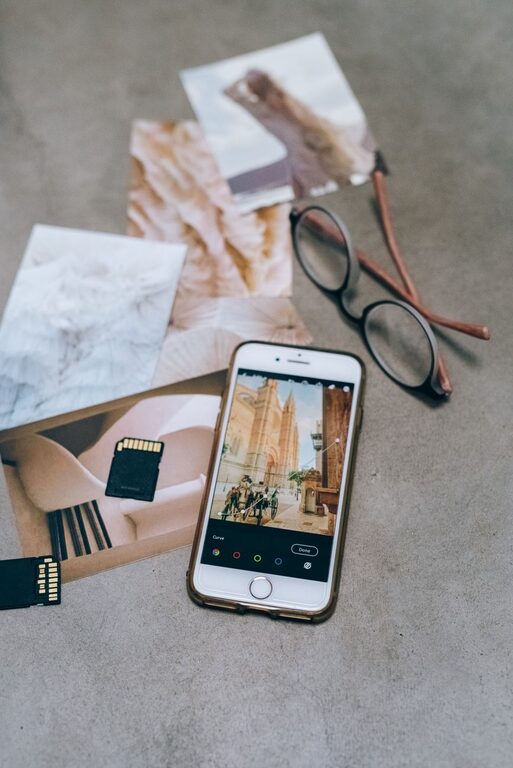
A Beginner’s Guide to Organizing Photos on Your Phone
Your phone makes it easy to capture photos every day, but a growing photo library can quickly become difficult to manage. Screenshots, duplicate images, receipts, vacation pictures, and family moments may all end up mixed together.
The good news is that you do not need special software or advanced technical skills to get organized. With a few simple habits, you can create a photo library that is easier to search, review, and enjoy.
Start With a Simple Goal
Before organizing your photos, decide what you want your library to do for you. A useful photo system should help you:
– Find important pictures quickly
– Remove images you no longer need
– Keep meaningful memories safe
– Reduce clutter on your phone
– Make room for new photos
Avoid trying to organize every image perfectly in one sitting. A large library can take time, so begin with a manageable project, such as organizing the past month or cleaning up screenshots.
Understand Your Phone’s Photo App
Most phones include a photo app with tools for sorting and managing images. The names may vary, but common features include:
– Albums or folders
– Favorites
– Search
– Recently deleted
– Duplicate detection
– Cloud backup
– Editing tools
– Shared albums
Spend a few minutes exploring these features. Look for options that group photos by date, location, people, or subject. Learning what your app can do may save you from manually sorting every image.
Some photo apps automatically create categories, while others let you make your own albums. Use the built-in search feature whenever possible. Searching for terms such as “screenshots,” “videos,” “receipts,” or a location can help you find groups of files quickly.
Begin With a Quick Cleanup
The easiest way to make progress is to remove obvious clutter. Open your photo library and look for images that have little long-term value.
Consider deleting:
– Accidental photos of the floor or a pocket
– Blurry pictures
– Repeated images
– Old screenshots
– Unneeded downloads
– Expired event tickets
– Photos of notes you no longer need
– Unwanted videos
Do not worry about making difficult decisions at this stage. Focus on images you are certain you no longer want. If you are unsure, leave the photo for a later review.
Many phones have a “Recently Deleted” folder. Deleted photos may remain there for a set period before being removed permanently. Review this folder occasionally, but remember that deleting files from it may make them difficult or impossible to recover.
Remove Duplicate and Similar Photos
People often take several pictures of the same moment. This is useful when choosing the best image, but keeping every version can create unnecessary clutter.
When reviewing similar photos, compare:
– Focus and sharpness
– Lighting
– Facial expressions
– Composition
– Important details in the background
Keep the strongest image or a small selection. Some phones can identify duplicate photos automatically. If your device offers this feature, review the suggested matches before confirming any deletions.
For important memories, it may be helpful to keep two or three different images rather than every nearly identical shot.
Create Useful Albums
Albums can make your library easier to browse, but too many albums may create another type of clutter. Choose categories that match the way you naturally look for photos.
Useful album ideas include:
– Family
– Friends
– Travel
– Pets
– Home projects
– Recipes
– Important documents
– Favorite photos
– Seasonal events
You can organize albums by event, person, or purpose. For example, “Summer Road Trip” may be more helpful than separate albums for every day of the trip.
Avoid creating an album for every small group of pictures. If an album will only contain a few images and you rarely need to revisit it, it may not be necessary.
Use Favorites for Your Best Photos
The Favorites feature is useful for marking your most meaningful or useful images. These may include:
– Family portraits
– Favorite travel photos
– Photos you want to print
– Images you often share
– Pictures of important items
– High-quality pictures for a project
Favorites should not become a second copy of your entire library. Use this feature selectively so it remains useful.
You can also use Favorites as a temporary review list. Mark photos you may want to print or share, then return to the list later and make final decisions.
Organize Screenshots and Reference Images
Screenshots often make up a large part of a phone’s photo library. They can include directions, product ideas, messages, recipes, and information you wanted to remember.
Set aside time to review them. Ask yourself:
- Do I still need this information?
- Can I find it again online or in an app?
- Should I save the information somewhere more suitable?
- Does this screenshot contain private information?
Delete screenshots that are no longer useful. For information you want to keep, consider moving it to a notes app, task list, or document. These tools may make the information easier to search than a photo library.
Add Descriptive Details When Helpful
Some photo apps allow you to add captions or descriptions. This can be useful for images that may be difficult to identify later.
For example, a caption could include:
– The event name
– The location
– The names of people
– The reason the photo matters
– A date or occasion
You do not need to caption every photo. Add details to special images, group photos, or pictures that you may want to find years from now.
Back Up Your Photos
A backup protects your photos if your phone is lost, damaged, or replaced. Many phones can automatically back up photos to a cloud service. You can also transfer them to a computer or external storage device.
When choosing a backup method, consider:
– How much storage you need
– Whether backups happen automatically
– How easily you can view and download files
– Whether the service works across your devices
– How often you should create a second copy
Check that backups are actually working rather than assuming they are active. Look for a backup status message in your photo app or account settings.
For especially important photos, consider keeping more than one copy. A second copy on a computer or external drive can provide additional protection.
Protect Your Privacy
Your photo library may contain personal details, travel information, documents, or images of other people. Review your sharing settings and be careful when sending photos to apps or contacts.
Before sharing an image, check whether it includes:
– Personal addresses
– Identification cards
– Tickets or account details
– Private messages
– Children or other people who may not want the image shared
– Location information
Use screen locks and account security features on your phone. If you share an album, confirm who can view it and whether they can add or download photos.
Create a Maintenance Habit
Organizing photos works best as a regular habit rather than a large annual project. A short review once a week or month can prevent clutter from building up.
A simple routine might include:
– Delete unwanted photos each week
– Review screenshots every month
– Check backup status regularly
– Move important photos into albums
– Review duplicate images
– Clear the Recently Deleted folder when appropriate
You can also organize photos immediately after an event. Delete poor images, choose favorites, and create an album while the details are still fresh.
Keep the System Simple
The best photo organization system is one you will continue to use. You do not need dozens of folders, complicated naming rules, or expensive tools.
Start with three actions:
- Delete photos you clearly do not need.
- Place important groups into a few useful albums.
- Turn on and verify automatic backups.
Once these steps become familiar, you can add captions, review duplicates, and refine your system. With regular maintenance, your phone’s photo library can stay tidy, searchable, and ready for the memories you want to keep.
